Whether you're capturing stunning sunsets on a tropical island or documenting your adventures in a bustling city, your SD card is essential for storing those precious travel memories. But what happens if your SD card suddenly stops working and you lose all your photos?
Don't panic! This guide will help you safely
recover deleted photos from SD card so you can restore your lost travel memories and keep your adventures intact.
Why Do SD Cards Get Corrupted While Travelling?
When you're on the go, your SD card is exposed to different environments and handling conditions, increasing the risk of corruption or data loss. Some common causes include:
- Improper Ejection – Removing your SD card from a camera, drone, or laptop without safely ejecting it can cause file corruption.
- Extreme Weather Conditions – Exposure to high humidity, heat, or cold can affect the card’s functionality.
- Frequent Transfers – Constantly moving files between devices like cameras, smartphones, and laptops increases the risk of file system errors.
- Power Failures – A camera running out of battery mid-shot or a sudden power cut while transferring photos can lead to data loss.
- Physical Damage – Travelling with an unprotected SD card in pockets or bags can result in scratches, cracks, or bending.
Signs That Your SD Card is Corrupted
If your SD card starts failing while you're travelling, you may notice:
- Error messages like “SD Card Needs to Be Formatted” or “Cannot Read from Device”.
- Your camera or laptop no longer recognising the SD card.
- Photos appearing as blank thumbnails or showing as corrupted files.
- The device freezing or crashing when trying to access the SD card.
If any of these issues occur, stop using the SD card immediately. Continuing to take photos or transfer files may overwrite lost data, making recovery more difficult.
Quick Methods to Recover Travel Photos from a Corrupted SD Card
1. Try a Different Device or Card Reader
Before assuming your SD card is damaged, insert it into another camera, phone, or laptop. Sometimes, the issue is with the device, not the card itself.
2. Use the CHKDSK Command (Windows Users)
Windows offers a built-in tool to repair file system errors. Here’s how:
- Insert your SD card into a computer using a card reader.
- Open Command Prompt (type CMD in the Windows search bar).
- Type: chkdsk X: /r (replace X with your SD card’s drive letter).
- Press Enter and wait for Windows to scan and repair the card.
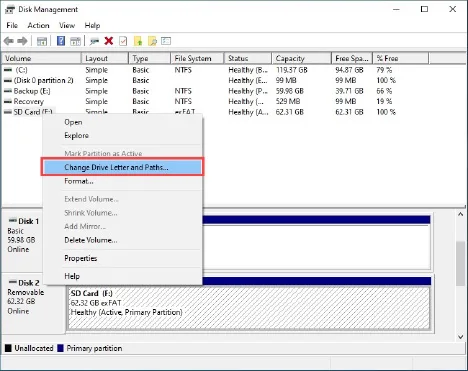
3. Change the Drive Letter of the SD Card
If your SD card isn’t showing up on your laptop, manually assigning a drive letter might help:
- Right-click on This PC and select Manage.
- Click on Disk Management.
- Locate your SD card, right-click it, and select Change Drive Letter and Paths.
- Assign a new drive letter and click OK.
4. Use a Specialised Photo Recovery Tool
If the above methods don’t work, a specialised
photo recovery tool can help retrieve lost travel photos. Software like Stellar Photo Recovery allows you to restore deleted pictures from SD cards, even if they’re formatted or inaccessible.
How to Recover Photos with Stellar Photo Recovery
- Download and install Stellar Photo Recovery on your laptop.
- Insert your SD card into a card reader and connect it to the computer.
- Launch the software and select your SD card. Click Scan.
- After scanning, preview and select the photos you want to recover.
- Click Recover and save your photos to a safe location (not the same SD card).
What If Nothing Works?
If your SD card is physically damaged or no software can recover your files, professional data recovery services like DriveSavers or Ontrack might be your last resort. However, these services can be expensive, so they’re best for irreplaceable memories.
 Tips to Prevent SD Card Issues While Travelling
- Back up regularly – Transfer photos to a laptop, cloud storage, or external hard drive.
- Use multiple SD cards – Don’t store all your travel photos on one card.
- Keep SD cards in a protective case – Avoid physical damage and exposure to extreme weather.
- Format cards properly – Use your camera’s built-in formatting option instead of formatting via a computer.
- Don’t delete photos directly from your camera – Deleting files this way can cause fragmentation and errors.
Final Thoughts
Losing your travel photos can be frustrating, but by following these recovery methods, you can restore lost images and continue capturing new adventures. Whether you use a built-in repair tool or a specialised photo recovery tool, acting quickly increases your chances of recovering your precious memories.
To avoid future mishaps, practise safe SD card handling and always back up your files regularly. Happy travels, and may your camera never fail you!